Autogenerating a block for each data type in GNU Radio using the GR_EXPAND utility

Many of the blocks in GNU Radio allow the user to select what data type (complex, float, int, byte, etc.) the block operates on. Writing a new block to handle each data type would be tedious, so the framework includes a utility to generate a number of different blocks from template files. I’ve used this to handle different data types in my message utility blocks and some research projects. While useful, I haven’t seen a lot of out-of-tree projects use it so I thought I’d add a step-by-step guide to using the utility for your own out-of-tree blocks.

Background

One may notice that many of the blocks in GNU Radio Companion include an option to configure the data type (complex, float, int, byte, etc.) that the block uses, often with a parameter called “IO Type”:
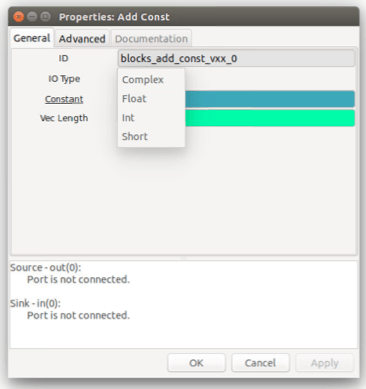
Screen Shot 2017-05-20 at 11.44.30 AM

The Add Const block supports several data types

Looking at the relevant parts in the block’s XML definition file we see that the option is used to call a different block for each data type

blocks.add_const_v$(type.fcn)($const)
...
 <param>
   <name>IO Type</name>
   <key>type</key>
   <type>enum</type>
   <option>
     <name>Complex</name>
     <key>complex</key>
     <opt>const_type:complex_vector</opt>
     <opt>fcn:cc</opt>
   </option>
   <option>
     <name>Float</name>
     <key>float</key>
     <opt>const_type:real_vector</opt>
     <opt>fcn:ff</opt>
   </option>
...

For example, selecting the complex option causes GNU Radio to call blocks.add_const_vcc whereas the float option will call blocks.add_const_vff. So where are those defined?

Though they are separate blocks in the view of GNU Radio, each was generated from a common file. Looking in the gnuradio/gr-blocks/lib directory we see the files add_const_vXX_impl.cc.t and add_const_vXX_impl.h.t which are the template files for each block. There is a similar add_const_vXX.h.t in the gnuradio/gr-blocks/include/gnuradio/blocks directory. Taking a look at the CMakeLists.txt shows the commands to generate the blocks.

include(GrMiscUtils)
GR_EXPAND_X_H(blocks add_const_vXX bb ss ii ff cc)

At compile time, the appropriate files will be generated from the templates and compiled. After that, they can be called from a Python or GNU Radio companion like any other block.

Let’s Build Our Own

There are a few steps to using the utility in your own out-of-tree projects, so let’s go through them step-by-step. Following the steps of the GNU Radio tutorial for writing out-of-tree modules we’ll create a block that performs a simple squaring operation. We’ll go through the process step-by-step, but the end result can be downloaded from GitHub to save some typing.

The new module was created using gr_modtool newmod howtogen. After that, the template files square_XX.h.t, square_XX_impl.cc.t, and square_XX_impl.h.t were added. Let’s take a look at those, beginning with square_XX.h.t:

#ifndef @GUARD_NAME@
#define @GUARD_NAME@
#include <howtogen/api.h>
#include <gnuradio/sync_block.h>

namespace gr {
  namespace howtogen {

    class HOWTOGEN_API @NAME@ : virtual public gr::sync_block
    {
     public:
      typedef boost::shared_ptr<@NAME@> sptr;
      static sptr make();
    };

  } // namespace howtogen
} // namespace gr

#endif /* @GUARD_NAME@ */

When generating files, the utility will replace @NAME@ with the appropriate class name: square_ff for the float case, square_cc for the complex, and so on. Looking in the work function of square_XX_impl.cc.t we see similar variables:

int
@NAME_IMPL@::work(int noutput_items,
          gr_vector_const_void_star &input_items,
          gr_vector_void_star &output_items)
{
    @I_TYPE@ *in = (@I_TYPE@ *) input_items[0];
    @O_TYPE@ *out = (@O_TYPE@ *) output_items[0];
    for(int ii=0;ii<noutput_items;ii++)
    {
      out[ii] = in[ii]*in[ii];
    }
    return noutput_items;
}

The utility will replace @I_TYPE@ and @O_TYPE@ with the correct data types: byte, int, float, etc. @NAME_IMPL@ will be the same as @NAME@ but with _impl at the end, as in square_ff_impl. To summarize, here is a list of the macros when translated for the float case:

Template Expanded
@NAME@ square_ff
@NAME_IMPL@ square_ff_impl
@GUARD_NAME@ INCLUDED_HOWTOGEN_SQUARE_FF_H
@I_TYPE@,@O_TYPE@ float

An XML file is created that allows the user to call the appropriate block from a user-selectable parameter in GNU Radio. A part of that is shown below:

<make>howtogen.square_$(type.fcn)()</make>
<param>
    <name>IO Type</name>
    <key>type</key>
    <type>enum</type>
    <option>
        <name>Complex</name>
        <key>complex</key>
        <opt>fcn:cc</opt>
    </option>
    ...

That gets all our files in place. What’s left to do is instruct the compiler how to expand and install the generated blocks. We’ll edit include/howtogen/CMakeLists.txt:

include(GrMiscUtils)
GR_EXPAND_X_H(howtogen square_XX             ss ii ff cc bb)

add_custom_target(howtogen_generated_includes DEPENDS
    ${generated_includes}
)

install(FILES
    api.h
    ${generated_includes}
    DESTINATION include/howtogen
)

GrMiscUtils is included in the make file and the GR_EXPAND_X_H macro tells the module name, the header file template name, and then lists what data types to expand with. These files will be generated as ${generated_includes} so we’ll need to tell CMake to install those. Similar instructions are added to lib/CMakeLists.txt:

include(GrPlatform) #define LIB_SUFFIX

include(GrMiscUtils)
GR_EXPAND_X_CC_H_IMPL(howtogen square_XX ss ii ff cc bb)

include_directories(${Boost_INCLUDE_DIR})
link_directories(${Boost_LIBRARY_DIRS})

list(APPEND howtogen_sources
    ${generated_sources}
)

set(howtogen_sources "${howtogen_sources}" PARENT_SCOPE)
if(NOT howtogen_sources)
    MESSAGE(STATUS "No C++ sources... skipping lib/")
    return()
endif(NOT howtogen_sources)

add_library(gnuradio-howtogen SHARED ${howtogen_sources})
add_dependencies(gnuradio-howtogen howtogen_generated_includes howtogen_generated_swigs)
target_link_libraries(gnuradio-howtogen ${Boost_LIBRARIES} ${GNURADIO_ALL_LIBRARIES})
set_target_properties(gnuradio-howtogen PROPERTIES DEFINE_SYMBOL "gnuradio_howtogen_EXPORTS")

We’ll again include GrMiscUtils and use the GR_EXPAND_X_CC_H_IMPL macro to generate the appropriate files. We’ll need to add {$generated_sources}to the sources and finally add howtogen_generated_inlcudes and howtogen_generated_swigs as dependencies using add_depedencies.

The next step is to add the files to howtogen_swig.i. There’s no macro to expand these, so we’ll type in each filename manually.

#define HOWTOGEN_API
%include "gnuradio.i"            // the common stuff
%include "howtogen_swig_doc.i"
%{
#include "howtogen/square_bb.h"
#include "howtogen/square_ss.h"
#include "howtogen/square_ii.h"
#include "howtogen/square_ff.h"
#include "howtogen/square_cc.h"
%}

%include "howtogen/square_bb.h"
%include "howtogen/square_ss.h"
%include "howtogen/square_ii.h"
%include "howtogen/square_ff.h"
%include "howtogen/square_cc.h"

GR_SWIG_BLOCK_MAGIC2(howtogen, square_bb);
GR_SWIG_BLOCK_MAGIC2(howtogen, square_ss);
GR_SWIG_BLOCK_MAGIC2(howtogen, square_ii);
GR_SWIG_BLOCK_MAGIC2(howtogen, square_ff);
GR_SWIG_BLOCK_MAGIC2(howtogen, square_cc);

Lastly, we’ll edit the howtogen_swig.i file to include the following lines:

file(GLOB xml_files "*.xml")

install(FILES
    ${xml_files} DESTINATION share/gnuradio/grc/blocks
)

Now everything should be in place to build. The Git repo contains some unit tests to ensure the square operation performs correctly. There is also a GNU Radio Companion flow graph to test if the XML generation worked correctly.


Decoding Your Keyless Entry Remote with Software-Defined Radio

In a previous post I talked about the process of using both MATLAB and GNU Radio to process data in real time. I recently used this process to put together a demonstration on how you could use an RTL-SDR to sense and decode the information your Keyless Entry remote sends to your car. This is a pretty popular demonstration of software-defined radio, Adam Laurie and Balint Seeber have put together similar demos.

Eventually I want to get the entire thing working with just GNU Radio but the hybrid approach is working well for now. It also shows how such a hybrid approach might be useful for other software-defined radio applications.

The Background

Keyless remote entry systems have been around for a while and likely aren’t going away any time soon. Your remote can send commands to your car wirelessly using a small radio transmitter to tell your car to unlock, lock, etc.

These remotes vary between auto manufacturers but for the most part they transmit at 315MHz and use On-Off Keying (OOK), a very simple form of digital modulation. OOK sends an RF signal of a certain length to represent a ‘1’ and stays silent to represent a ‘0’.

For security reasons the remote doesn’t send the same signal each time. The remote encrypts its commands using a rolling key so the bits representing each command are different each time. Your car and remote share the same private key which makes it so only your car can decode the encrypted transmission.

This begs the question, what happens when I press a button when I’m out of range of my car? Doesn’t that get the two rolling keys out of sync? Your car actually calculates the rolling key for the next transmission it expects as well as the next 256 transmissions (that number may vary between manufacturers). If any of the 256 match the received signal from your remote, the car will unlock and resynchronize. Of course, if you use your remote more than 256 times while out of range of your car the two will get out of sync. In that case there is usually a procedure in the owner’s manual to get them synced up again.

The Setup

To receive the signal I’ll use an RTL-SDR dongle tuned to 315MHz and running at the default sample rate of 2Msps. In GNU Radio I’ll decimate and lowpass filter the received signal. Since the modulation is OOK, I will just take the magnitude of the received signals.

Keyless Flowgraph

That data will be written into a FIFO as previously discussed. I will continue the rest of the processing in MATLAB.

Getting The Bits 

In MATLAB I will begin by opening and reading samples from the FIFO. As per the previous post, I’ll make sure that I start the flow graph running before trying to read samples from the FIFO, or MATLAB will lock up.

fi = fopen('data/keyless_mag_fifo','rb');
raw = fread(fi, buffer_len, 'float');

This will give a chunk of floating point samples of length buffer_len (in this case 50,000) containing transmissions and silence. I’ll use a simple energy detection to figure out the start of the frame.

Raw Samples

50,000 samples captured from the RTL-SDR, showing two transmissions.

eng_mat = vec2mat(raw,10);
x_mag = abs(eng_mat).^2;
x_sum = sum(x_mag,2);

b = x_sum(2:end);
a = x_sum(1:end-1);

x_diff = b./a;
x_norm = x_diff./max(x_diff);

The stream is broken up into chunks of ten samples. The energy of each chunk is calculated by taking the sum of the magnitude squared. Two vectors containing the calculated energies are created with the vector a lagging one chunk behind the vector b. If I divide b by a the resulting vector x_diff will contain peaks when the transmissions begin.

Energy Detection

Result of energy detection run on the 50,000 samples.

x_ind = find(x_norm>threshold);
if (isempty(x_ind))
    x_ind = 1;
end

start_ind = x_ind(1)*window_len;

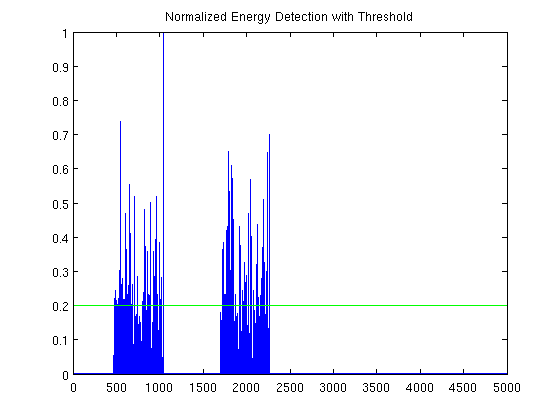
If I then normalize the vector x_diff so that the tallest peak has a value of 1, I can set a threshold (0.2 in this case) that I’ll consider the start of the peak. If I find a peak I can calculate the sample with which to start the packet.

Detection With Threshold

Normalized energy detection with threshold. I’ll detect the two packets, but process one at a time 

I’ll then count out a number of samples after the start index (in this case 6,000) and save that as the packet. I’ll do a quick check that I have at least 6,000 samples left in the vector raw. If not, I’ll check if there are more samples available in the buffer and grab those. I’ll then remove those samples from the vector raw.

Raw Packet

The first packet in raw, containing 6,000 samples

if (start_ind+pkt_len)>length(raw)
    in_buff = fread(fi, buffer_len, 'float');
    if (isempty(in_buff))
        %display('Buffer Empty')
        continue
    end
    raw = cat(1,raw,in_buff);
end

x_pkt = raw(start_ind:start_ind+pkt_len);
raw = raw(start_ind+pkt_len+1:end);

After processing these samples I’ll return to read 6,000 more samples from raw until the vector is empty at which point I’ll grab 50,000 more samples from the buffer and store it in raw.

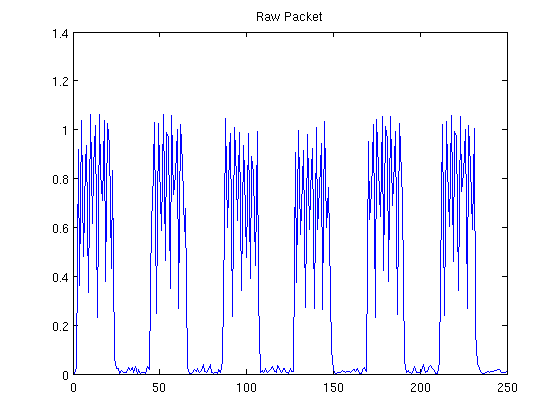
At this point I can take a closer look at the packet extracted from raw. Looking at the first 250 samples I can see the on-off keying more clearly.

First 250 Samples of Raw Packet

Raw packet, zoomed in on the first 250 samples

I’ll then filter the signal with an integrator to smooth out the plateaus and silences that comprise the OOK signal.

x_filt = filter(ones(1,n)/n,1,x_pkt);
Filtered Packet

Filtered packet, zoomed in on the first 250 samples

Then I’ll use a threshold to filter the further so each sample is either a one or a zero.

x_dec = x_filt;
x_dec(x_dec>0.3) = 1;
x_dec(x_dec~=1) = 0;

In this case the threshold used is 0.3. I’ll then cut the beginning of the packet so that the first sample is the start of the first plateau.

x_ind = find(x_dec);
if (isempty(x_ind))
    continue;
end

start_ind = x_ind(1);
x_dec = x_dec(start_ind:end);
Data after threshold, zoomed in on the first 250 samples

Data after threshold, zoomed in on the first 250 samples

Next I need to convert the OOK pulses into bits. For this I’ll count the duration of the plateaus and silences.

counter =0;
bit_ind = 1;
for ii=2:length(x_dec)-1
    if (x_dec(ii)~=x_dec(ii-1)) % Transition
        counter = 0;
    else
        counter=counter+1;
        if (counter>16)
            counter=0;
            bit(bit_ind) = x_dec(ii);
            bit_ind=bit_ind+1;
        end
    end
end

After a high-low or low-high transition we’ll start a counter. If the counter reaches a value (16 in this case) without another transition occurring I’ll store the bit.

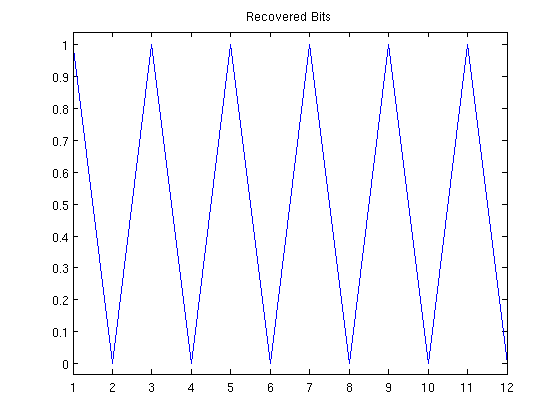
The first 250 samples yield the first 12 bits of the data

The first 250 samples yield the first 12 bits of the data

The bits can then be converted to bytes using MATLAB’s bi2de function.

bit_group = vec2mat(bit,8);
byte = bi2de(bit_group)';

Decoding The Signal

The last part is to make sense of all the bytes that are being transmitted. In addition to the encryption mentioned above, the format of the packet is almost entirely different for each car manufacturer. The structure below pertains to my Saturn, but your car may be different.

I found the packet starts off with thirteen bytes of value 85 (alternating ones and zeros in binary) to synchronize the transmission. I start by finding these bytes and keeping everything after them as the payload.

known_sync = 85*ones(1,13);
if (length(byte)<14)
    continue
end
sync = byte(1:13);
payload = byte(14:end);

If the sync is found I flag the packet as good and go on to display the results. If the sync wasn’t correctly found I skip this packet and go back to the start of the loop to grab more data.

pkt_good = false;
if (isequal(sync,known_sync))
    display('Received Pkt')
    pkt_good=true;
end
if (~pkt_good)
    continue
end

Unfortunately due to the encryption this is where the decoding stops. What I have next is a sequence of approximately 20 bytes that correspond to a command transmitted to my car. However, due to the encryption I cannot tell what command is being sent. Instead I just display the sync code and the data along with a message that the signal was received. The data stays around for a few seconds and then fades.

Keyless Demo Display

Next Steps

While this project shows a good example of using both MATLAB and GNU Radio, for this particular application it would probably be best to use one or the other. I would like to eventually transition all the signal processing over to GNU Radio. My other option would be to interface directly with the RTL-SDR in MATLAB using the Communication Systems Toolbox to control the RTL-SDR. Processing the data using MATLAB’s object-oriented programming features would also improve the efficiency, but that might just have to be a project for another day.

Until then, the code for this project can be found on GitHub.

GNU Radio: Online Processing with MATLAB

Previously I talked about using MATLAB as a tool to read and process data from GNU Radio to help debug a flow-graph offline. If we can do some signal processing in MATLAB after GNU Radio has run, would it be possible to do so while GNU Radio is running? The answer is yes, we can move our processing from GNU Radio to MATLAB at almost any part of a flow-graph.

We’ll use a special file type called a FIFO which is able to be accessed by multiple programs to read and write data. GNU Radio will push data to the FIFO and MATLAB will read that data. In this example I will use my RTL-SDR software-defined radio to receive data, lowpass filter, take the magnitude, and pass the samples to MATLAB for further processing.

RTL-SDR Flow Graph

To direct data to the FIFO in GNU Radio we use a regular file sink and enter the path to where my FIFO will be located.I’m using my Keyless Entry Decoder (more detail on this to come in another post) as an example so I’ll call the file keyless_mag_fifo.

Then we hit the Generate button in GRC, but not the Execute button. This will generate a Python file. By default it will be named top_block.py but we can change that by editing the ID field in the Options block in the flow graph. I’ll name my flow graph keyless_live.

Then we’ll create a shell script, in this example run_keyless_demo.sh. This script will create the FIFO and run the flow graph to start streaming samples to it. The script consists of just a few lines.

clear
sudo rm keyless_mag_fifo
mkfifo keyless_mag_fifo
python keyless_live.py

The script will need root privileges to create the FIFO so we will run the script with

sudo sh run_keyless_demo.sh

Now we just need to pull the data to MATLAB. I’ll use similar code to that which was discussed in previous posts. First we open the FIFO. This is done once

fi = fopen('keyless_mag_fifo','rb');

Then we will write a loop of some sort to pull a certain number of samples out of the FIFO and process them. This line sits inside a while(1) loop

raw = fread(fi,buffer_len,'float');

I’ll need to correctly handle the data type of the samples inside the buffer. In this case they are floats. My buffer length is adjustable. I’ll also check that the function filled the vector raw with the number of samples I asked for.

The most important caveat concerning this process is that the shell script must be running before the above commands are executed in MATLAB. For some reason reading from a buffer that samples aren’t being streamed to will make MATLAB lock up quite unforgivingly. Make sure that you run the shell script then the MATLAB script to ensure all the code plays nice with each other.

In a future post I’ll use this style of processing to decode an On-Off Keying modulated signal from my car’s Keyless Entry remote.


GNU Radio: Some More Tools for Offline Processing In MATLAB

In my last post I talked about how data can be stored and read in MATLAB for analysis. The only downside is that these data files do not include any information about timing relative to other blocks. GNU Radio has a built-in functionality with stream tags to keep track of timing information. This can be useful for working with packetized data, but currently there isn’t any way to save those tags along with data to look at later. I’ve been working on a few blocks that might be able to help with this.

Bursty Data & Stream Tags

Originally GNU Radio was great for continuous streaming of samples, but lacked the ability to pass ancillary information like meta data, packet lengths, and the like that would help with decoding bursty data sent in packets. However, in recent years there has been quite a bit of work done to improve this.

One of the features that has helped extend the project’s functionality is Stream Tags. These stream tags operate as a separate data stream to pass information along to blocks downstream in the flow graph. These tags are associated with a certain sample in the data stream and that timing relation is preserved as the tags propagate through the remaining blocks. For instance, there are several blocks in GNU Radio that expect the first sample of a packet to have a tag containing the length of the packet. The block can then do its processing based on packet length.

Stream Tags are Polymorphic Types, a data type that can be used as a general container for data, be it vectors, strings, or any number of data formats such as ints and floats. Each tag has a specific format that contains several parts:

  1.      Offset:          The data stream sample that the tag is associated with
  2.      Key:              A PMT symbol that contains an identifier for the tag
  3.      Value:           A PMT representation of the data the tag is passing
  4.      Source ID:    A PMT symbol representing the block that created the tag (optional)

Saving Tags To File

In my last post I went through using file sinks to process data offline using software such as MATLAB. Currently, the file sinks don’t save tags along with that data. However, such information such as the timing and value of tags might be useful for debugging. For example, if you have a tag denoting the start of each packet you may wish to have that timing information available in MATLAB.

To do this I wrote a fairly simple block “Tag to Byte”. For a parameter it asks for the key associated with a given tag, which in this example is “packet_len”. It can be inserted anywhere into a stream, just change the IO Type parameter to match the input data type. The Tag to Byte block can be followed by a file sink.

Tag To Byte


Tag to Byte Block In A Flowgraph


The block searches the stream for a tag matching the key. When it finds one it outputs a ‘1’ for that sample only. For any samples that don’t have a tag it outputs a ‘0’. This way the timing between tags is preserved as it is written to file. The file length will be the same as a file containing the data from the same point in the flow graph and the tags will be at the correct offset. The extra timing information from the tags can be used in processing data offline.

Tag and Data


Plotting Data and Tags in MATLAB


Adding Tags From A File

There also is some utility in being able to add tags anywhere in a data stream. GNU Radio has some functionality for this already. There is a stream to tagged stream block that will add tags at evenly spaced intervals. This can be useful for data that is evenly spaced. However if the tags need to correspond to data that is unevenly spaced, such as simulated irregular bursty transmissions we need another tool to do so.

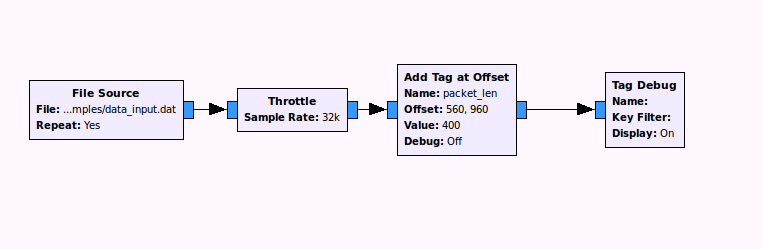
A block I’ve written called “Add Tag at Offset” takes care of this. It can be inserted anywhere in a data stream and will insert tags into the stream. As parameters it will ask for the key to be associated with the tags and the value to insert. The last parameter is the offset for the tags, and this can be a vector of any length.

Add Tag at Offset

Using Add Tag at Offset In A Flow Graph


Every time the block reaches a sample with the same offset as is in its offset vector it will add a tag to that sample. All samples are passed through so the block does not interrupt the data flow.

This can be useful if we wish to take a block that uses tags in a complex flow graph and examine its performance by itself. We can load data from a file and add tags anywhere in the input stream. From the block’s perspective it seems as if it is still in the overall flow graph.

Both of these blocks and a few more that are useful for working with stream tags are available on GitHub.

What’s Next

There are a few obvious improvements to make to these tools that will be coming soon. It would be nice if the Add Tag at Offset block was able to add tags of different values instead of writing the same value each time. Its current operation might be okay if you were say passing the length of packets to the next block but less useful if you were using the tag to carry information that changes from packet to packet (an estimate of the packet’s carrier frequency offset, for example). A future improvement would be to have this block read the tag values from a vector as well.

It would also be nice if Tag to Byte would pass the value of the tags along to a file sink instead of just a ‘1’ to represent the presence of a tag. A new block with the working title “Tag Extractor” is being developed that will do just that. It will take some doing to cover all stream data types and tag data types, but I’m working on it. The first version of this (only for complex streams and complex-valued tags) is also available on GitHub.


GNU Radio: Tools for Offline Processing With MATLAB

Some Background

The GNU Radio project is pretty awesome.

My research focusses on wireless communications. The concept of radio receiver incredibly simple: use an antenna to receive a signal through the air and process that signal to extract the useful information (voice, data, etc). A transmitter is the same idea, in reverse order. The challenging part is the signal processing turn radio waves into information you care about.

When doing work in signal processing for radio communications it is very valuable to be able to test out your ideas with real radios transmitting over the air. In the not-to-distant past this would mean fabricating a new circuit board for every new design. The concept behind software-defined radio is to replace the signal processing done by the fixed hardware with signal processing done digitally. With a software-defined radio we can change the radio just by changing code and test out many new radio designs without having to build new hardware each time.

GNU Radio provides an excellent framework for experimenting signal processing for communication. A receiver or transmitter design in GNU Radio is made up of many blocks each performing one specific function (modulation, encoding, scaling, etc). Each block, written in C++ or Python, takes in data through an input port, processes it, and outputs it to an output port. GNU Radio provides the framework to glue the inputs and outputs together to form a chain of blocks to accomplish a task. This collection of connected blocks is called a flow graph. It even comes with a Simulink-style GUI where connections are shown graphically.

An Example Flowgraph What A Flow Graph in GNU Radio Companion Looks Like

With a flow graph implementing the signal processing necessary for, let’s say, an FM radio receiver, you can connect a software-defined radio to your PC and process the data from raw signal to recovered audio.

GNU Radio also gives users the ability to save data at any point in the flow graph to a binary file using file sinks and file sources. The resulting files can be read after the flow graph has run and are useful tools for debugging complicated flow graphs.

Connecting A File Sink Connecting A File Sink

Working With File Sinks

The file sink block uses stdio to write raw samples to a file. By default, during this process a certain number of samples will be buffered before being written to file. The number of samples varies by operating system. If there is only a short amount of data going into that file sink you may find the file to be empty after the flow graph is stopped. For this case, we can use the “unbuffered” option. This bypasses the buffering operation and writes all samples directly to file.

Another thing to note is that GNU Radio companion uses absolute file paths. So be sure to change the paths if you move your flow graph to another directory or machine.

There are several ways that data can be represented in GNU Radio. These data types can be selected in the file sink block and must match the data type of the samples that are streaming to it. The data types used are:

Complex 32 bit floating point for both I and 32 Q
Float 32 bit single precision floating point
Integer 32 bit signed integer
Short 16 bit signed integer
Byte 8 bit signed integer

Reading Binary Files in MATLAB

Once data has been written to a file there are several ways we can examine it. A file source can be used to read back the file into another GNU Radio flow graph. We could also use Python to read and analyze the data. While it’s not free, MATLAB can be a particularly useful tool and one which most engineers are rather familiar with.

Raw data files can be read into MATLAB quite easily with a few lines of code:

f = fopen(filename, 'rb');
v = fread(f,count);
fclose(f);

The first line tells MATLAB to open the file given by filename as read-only with Big-Endian encoding. The file identifier is stored in the variable f. The last line closes the file.

The MATALB function fread does the work of pulling data out of the file and into the array v. We give it the file identifier and the number of items to read (or tell it to read the file until empty). By default, MATLAB will read the file assuming the data type is an 8-bit integer. To read different file types we will need to add an extra parameter. For example, to read floats from a file we will use

v = fread (f, count, 'float');

For the case of complex numbers the I and Q samples are interleaved. The data file will contain the I for sample 1, the Q for sample 1, the I for sample 2, etc. The read_complex_binary.m file distributed with GNU Radio shows how to take care of this

t = fread (f, [2, count], 'float');
v = t(1,:) + t(2,:)*i;
[r, c] = size (v);
v = reshape (v, c, r);

We will read the data two floats at a time. Then convert the two floats to one complex number. That will then be reshaped into one complex vector.

It is convenient to create a function that does the file read operation for each data type. Several of these files come with GNU Radio such as read_float_binary.m and read_complex_binary.m. I’ve written functions that do the same for all the other data types used in GNU Radio. They are available to download from GitHub.

Writing Binary Files From MATLAB

We can also write data from MATLAB to a file and play that file back in GNU Radio using a file source. We’ll use a similar set of commands.

f = fopen (filename, 'wb');
v = fwrite (f, data);
fclose (f);

We’ll open a file specified by filename, this time making it writable. We’ll write the vector data into that file using MATLAB’s fwrite command. The variable v will show the number of elements in data that were successfully written to file.

We will need to give fwrite the same parameters to deal with different data types as in fread. For example, to write a vector of floats to file we will use

v = fwrite (f, data, 'float');

As with the read functions, there are several MATLAB files distributed with GNU Radio to handle writing to files from MATLAB. I’ve added functions to handle other data types which are also available in the GitHub repository.